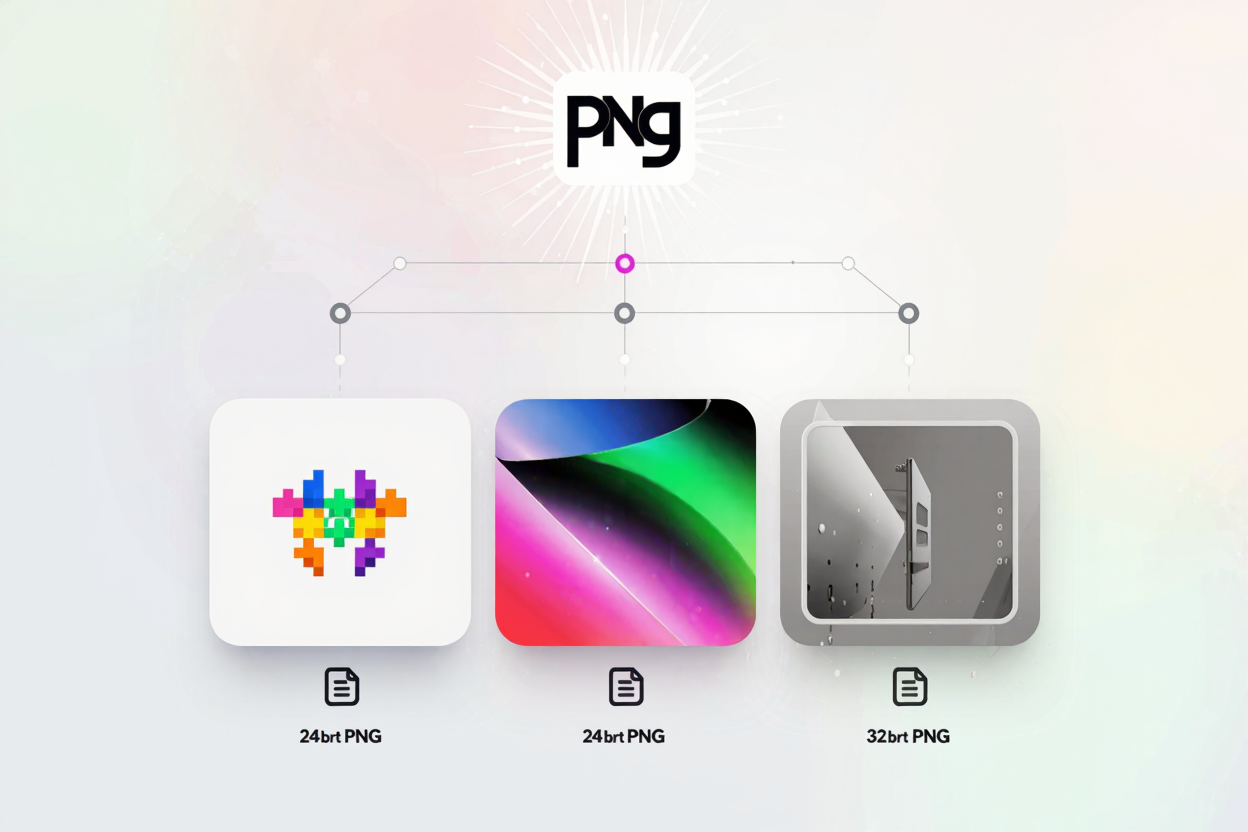
PNG (Portable Network Graphics) is a cornerstone of web imagery, celebrated for its lossless compression and support for transparency. However, not all PNGs are created equal. A critical factor influencing both image quality and file size is color depth – often expressed in bits. Understanding the differences between 8-bit, 24-bit, and 32-bit PNGs is essential for web developers, designers, and anyone looking to optimize their digital assets for performance and visual fidelity.
Understanding Color Depth in PNGs
Color depth refers to the number of bits used to represent the color of a single pixel in an image. The more bits per pixel, the more colors an image can display, leading to a richer and more detailed visual experience. This directly impacts the range of hues, shades, and gradients an image can render. A higher color depth generally means a larger file size, creating a constant balance act between quality and performance.
8-bit PNGs: The Paletted Powerhouse
An 8-bit PNG uses 8 bits per pixel, allowing it to represent up to 256 distinct colors (2^8). Instead of storing the exact color value for each pixel, an 8-bit PNG references a "palette" or "color lookup table" that contains these 256 colors. Each pixel then simply stores an index pointing to one of these colors in the palette.
This method makes 8-bit PNGs incredibly efficient in terms of file size. They are ideal for images with a limited color range, such as logos, icons, line art, and simple graphics. While they offer excellent compression for such content, using them for photographs or images with complex gradients can lead to "color banding," where smooth transitions appear as distinct, stair-stepped blocks of color due to the limited palette.
24-bit PNGs: True Color Fidelity
Stepping up from 8-bit, a 24-bit PNG allocates 24 bits per pixel, dividing them into 8 bits each for Red, Green, and Blue (RGB) color channels. This allows for a staggering 16.7 million colors (2^24), which is often referred to as "True Color." With such a vast spectrum, 24-bit PNGs can accurately reproduce photographic images, intricate illustrations, and images with subtle color variations and smooth gradients without banding.
The primary advantage of 24-bit PNGs is their superior color accuracy and visual quality, making them suitable for most high-quality image needs where transparency isn't a primary concern. The trade-off, however, is a significantly larger file size compared to their 8-bit counterparts, as each pixel now carries much more color information.
32-bit PNGs: The Alpha Advantage
The 32-bit PNG takes the 24-bit True Color model and adds an extra 8 bits for an "alpha channel." This alpha channel is dedicated to storing transparency information for each pixel. With 256 levels of transparency (0 being fully transparent, 255 being fully opaque), 32-bit PNGs can achieve smooth, semi-transparent effects, drop shadows, and complex overlays.
This capability is invaluable for web design, allowing images to blend seamlessly into various backgrounds without jagged edges, or to create sophisticated layered graphics. For instance, a logo with a soft glow or a product image with a subtle shadow would typically be saved as a 32-bit PNG. While offering the ultimate in visual flexibility and quality, 32-bit PNGs have the largest file sizes among the three, due to the additional transparency data for every single pixel.
Choosing the Right Color Depth for Your Needs
Selecting the appropriate PNG color depth is a critical decision that impacts website performance and user experience.
- For simple graphics, logos, and icons with a limited color palette, 8-bit PNGs are generally the best choice for their small file size and quick loading times.
- For photographs, detailed illustrations, or images requiring rich, accurate colors without transparency, 24-bit PNGs provide excellent quality.
- When transparency, semi-transparency, or complex blending is required, such as for overlays, watermarks, or images with soft edges, 32-bit PNGs are indispensable.
Always consider the visual requirements of your image against the need for a lean file size. Over-specifying color depth can lead to unnecessarily large files, slowing down your website.
The Role of Compression in PNG Optimization
Regardless of the color depth you choose, effective compression remains paramount. PNGs, by nature, use lossless compression, meaning no data is discarded during the compression process, preserving the original image quality. However, even lossless compression can be significantly optimized. Tools designed for PNG optimization can intelligently reduce file sizes by removing unnecessary metadata, optimizing color palettes, and applying advanced compression algorithms without sacrificing visual integrity. For example, after converting an image, you might want to compress your PNG files for free to ensure optimal web performance.
Many images, like those captured on modern phones, are often in formats like HEIC. Before you can optimize them as PNGs, you might need a conversion step. A reliable <a href="https://convertminify.com/tools/heic-to-png" target="_blank" rel="noopener noreferrer">HEIC to PNG Converter</a> can help you transform these high-quality images into a web-friendly PNG format, ready for further optimization. Once converted, you can then apply the principles of color depth and compression to achieve the best results.
FAQ
Q1: Can I convert a 24-bit PNG to an 8-bit PNG?
Yes, you can convert a 24-bit PNG to an 8-bit PNG. This process is called "quantization" or "downsampling." The image editor will reduce the number of colors to 256 or less, creating a color palette. While this significantly reduces file size, it can introduce color banding or loss of detail, especially in images with many colors or gradients.
Q2: Does a higher color depth always mean a better-looking image?
Not necessarily. While higher color depth allows for more colors and smoother gradients, if an image fundamentally has a limited color palette (like a simple logo), using 24-bit or 32-bit depth won't magically make it "better" and will only result in a larger, less efficient file. The "best-looking" image is often the one that balances visual quality with optimal file size for its intended use.
Q3: How does the alpha channel in 32-bit PNGs work?
The alpha channel in a 32-bit PNG is an additional 8-bit layer dedicated solely to transparency information. For each pixel, it specifies its opacity level, ranging from fully transparent (0) to fully opaque (255). This allows for partial transparency, enabling smooth edges, shadows, and other sophisticated visual effects where an image needs to blend seamlessly with its background.
Optimize Your PNGs for Peak Performance
Understanding PNG color depth is a powerful tool in your web optimization arsenal. By intelligently choosing between 8-bit, 24-bit, and 32-bit PNGs based on your image content and specific needs, you can strike the perfect balance between visual quality and file size. Don't let large image files slow down your website. Take control of your digital assets by leveraging the right color depth and applying efficient compression. Ready to enhance your site's speed and user experience? Visit PNGMinify today to compress your PNG files for free and utilize our powerful PNG optimization tool for all your image needs.