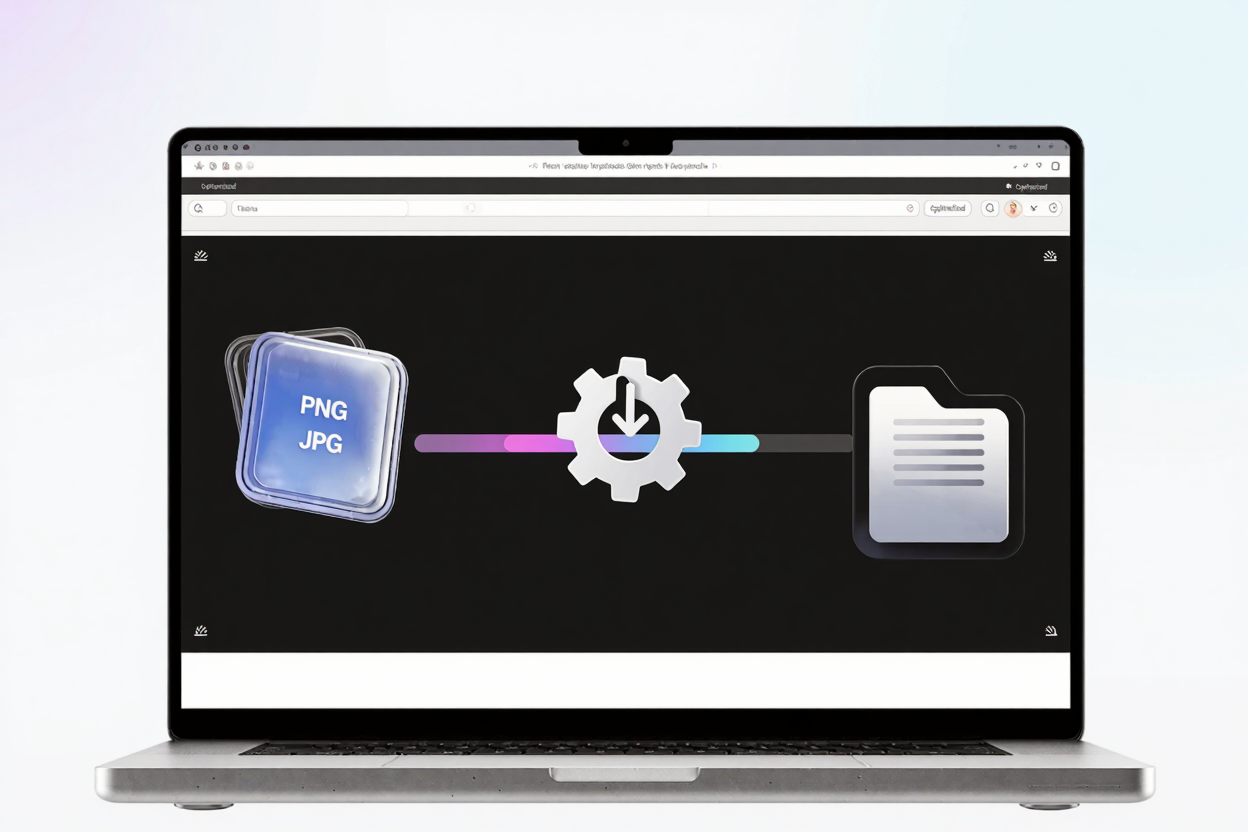
In today's competitive digital landscape, a fast-loading website isn't just a luxury; it's a necessity. For Squarespace and Wix users, optimizing images is one of the most impactful steps you can take to enhance your site's performance, improve search engine rankings, and provide a superior user experience. Large, unoptimized images are often the primary culprits behind slow load times, frustrating visitors and potentially costing you valuable traffic.
This guide will walk you through the essential strategies for optimizing your images specifically for Squarespace and Wix platforms. By implementing these tips, you'll ensure your visuals are stunning without sacrificing speed or SEO.
Why Image Optimization Matters for Your Website
Image optimization is more than just making files smaller. It's about striking a balance between image quality and file size to ensure quick loading times and excellent visual fidelity. This balance directly influences several critical aspects of your website's success.
Page Speed & SEO
Search engines like Google prioritize fast-loading websites, factoring page speed into their ranking algorithms. Optimized images contribute significantly to quicker load times, which can lead to better search engine rankings and increased organic traffic. A slow site, conversely, can be penalized, making it harder for potential visitors to find you.
User Experience
Visitors expect websites to load instantly. Slow-loading images can lead to high bounce rates, as users are unwilling to wait for content to appear. A smooth, fast experience keeps visitors engaged longer, encouraging them to explore more of your site and convert into customers or subscribers. This principle extends beyond images to other large files; for instance, optimizing PDFs with a tool like <a href="https://pdfalone.com/tools/compress-pdf" target="_blank" rel="noopener noreferrer">Compress PDF</a> can also significantly improve overall site performance if you host many documents.
Storage & Bandwidth
While Squarespace and Wix offer generous storage, smaller image files reduce the amount of storage space your website consumes. More importantly, optimized images consume less bandwidth, which can be beneficial for both your hosting plan and the user's data consumption, especially for mobile users.
Key Image Optimization Principles
Before diving into platform-specific tips, understanding the core principles of image optimization is crucial. These apply universally, regardless of your website builder.
Choose the Right Format
The image format you choose significantly impacts file size and quality. Each format has its strengths and ideal use cases.
- PNG: Best for images requiring transparency (like logos) or graphics with sharp lines and text. PNGs are lossless, meaning they retain all image data, which can result in larger file sizes. However, tools like compress your PNG files for free can drastically reduce their size without compromising quality.
- JPEG: Ideal for photographs and complex images with many colors and gradients. JPEGs use lossy compression, which means some image data is discarded to achieve smaller file sizes. You can adjust the compression level, but excessive compression can lead to noticeable quality degradation.
- WebP: A modern format developed by Google, WebP offers superior lossless and lossy compression for images on the web. It often results in significantly smaller file sizes than JPEG or PNG while maintaining high quality. Squarespace and Wix often automatically convert images to WebP for optimized delivery, but starting with well-optimized source files is still beneficial.
Image Dimensions and Resolution
Uploading images that are much larger than they will be displayed on your website is a common mistake. Most websites, including Squarespace and Wix, will resize images to fit, but the original large file still needs to be downloaded, slowing down your site.
Aim to upload images that are close to their intended display size. For full-width banners, 2000-2500 pixels wide is often sufficient. For smaller images, 1500-1800 pixels is usually a good range. The resolution (DPI/PPI) is less critical for web images; what truly matters is the pixel dimensions (width x height).
Compression without Quality Loss
Image compression is the process of reducing an image's file size. Lossless compression reduces file size without any loss of quality, while lossy compression sacrifices some quality for greater size reduction. For PNG files, lossless compression is highly effective. Before uploading, use a reliable PNG optimization tool to ensure your files are as small as possible without visible quality loss.
Optimizing Images Specifically for Squarespace
Squarespace has excellent built-in image optimization features, but you can still take steps to ensure optimal performance.
- Pre-upload Sizing: Resize your images before uploading them. Squarespace recommends images be between 1500 and 2500 pixels on their longest side. Uploading images significantly larger than this will result in Squarespace resizing them, but the initial file size will still impact upload time and potentially overall site performance.
- File Naming: Use descriptive, keyword-rich filenames (e.g.,
blue-ocean-sunset.jpginstead ofIMG001.jpg). This helps with SEO. - Alt Text: Always add descriptive alt text to your images within Squarespace. This is crucial for accessibility and provides search engines with context about your image, boosting your SEO.
Optimizing Images Specifically for Wix
Wix also provides robust tools to help with image optimization, but your pre-upload preparation is key.
- Wix Pro Gallery: If using the Wix Pro Gallery, it automatically optimizes images. However, providing images that are already reasonably sized will improve upload speed and initial processing.
- Wix Image Editor: Utilize Wix's built-in image editor to crop, resize, and adjust images after uploading. While this won't reduce the original uploaded file size, it helps control display size.
- File Naming and Alt Text: Similar to Squarespace, use descriptive filenames and always fill out the alt text field for every image. This is vital for both SEO and accessibility.
General Best Practices for Both Platforms
Beyond platform-specific features, these general tips will further enhance your image optimization efforts.
- Consistent Naming Conventions: Maintain a clear and consistent naming convention for all your image files. This aids in organization and SEO.
- Descriptive Alt Text: Reiterate the importance of alt text. It's not just for SEO; it's essential for visually impaired users who rely on screen readers. Describe the image accurately and concisely.
- Lazy Loading: Both Squarespace and Wix typically implement lazy loading for images by default. This means images outside the user's current viewport only load as they scroll down, significantly improving initial page load times.
- Regular Audits: Periodically review your website's images. Are there any unnecessarily large files? Are all alt texts filled out? Regular audits ensure your site remains fast and optimized.
- Pre-compression: Always aim to compress your images before uploading them to your website builder. Using a tool to compress your PNG files for free ensures you're starting with the smallest possible file size, giving your website builder less work to do and resulting in a faster site.
FAQ
What's the ideal image size for Squarespace/Wix?
For most purposes, images between 1500 and 2500 pixels on their longest side are ideal. This range provides sufficient detail for various screen sizes without being excessively large.
Should I use PNG or JPEG?
Use PNG for images requiring transparency (logos, icons) or graphics with sharp lines. Use JPEG for photographs and complex images with many colors, as it offers better compression for these types of visuals.
Does image optimization really affect SEO?
Absolutely. Page speed is a significant ranking factor for search engines. Optimized images lead to faster page loads, which can improve your site's SEO, user experience, and ultimately, organic traffic.
Optimizing images for your Squarespace or Wix website is a fundamental step towards a high-performing and user-friendly online presence. By understanding image formats, dimensions, and compression techniques, you can significantly boost your site's speed and SEO. Start enhancing your website today by ensuring all your images are perfectly optimized.