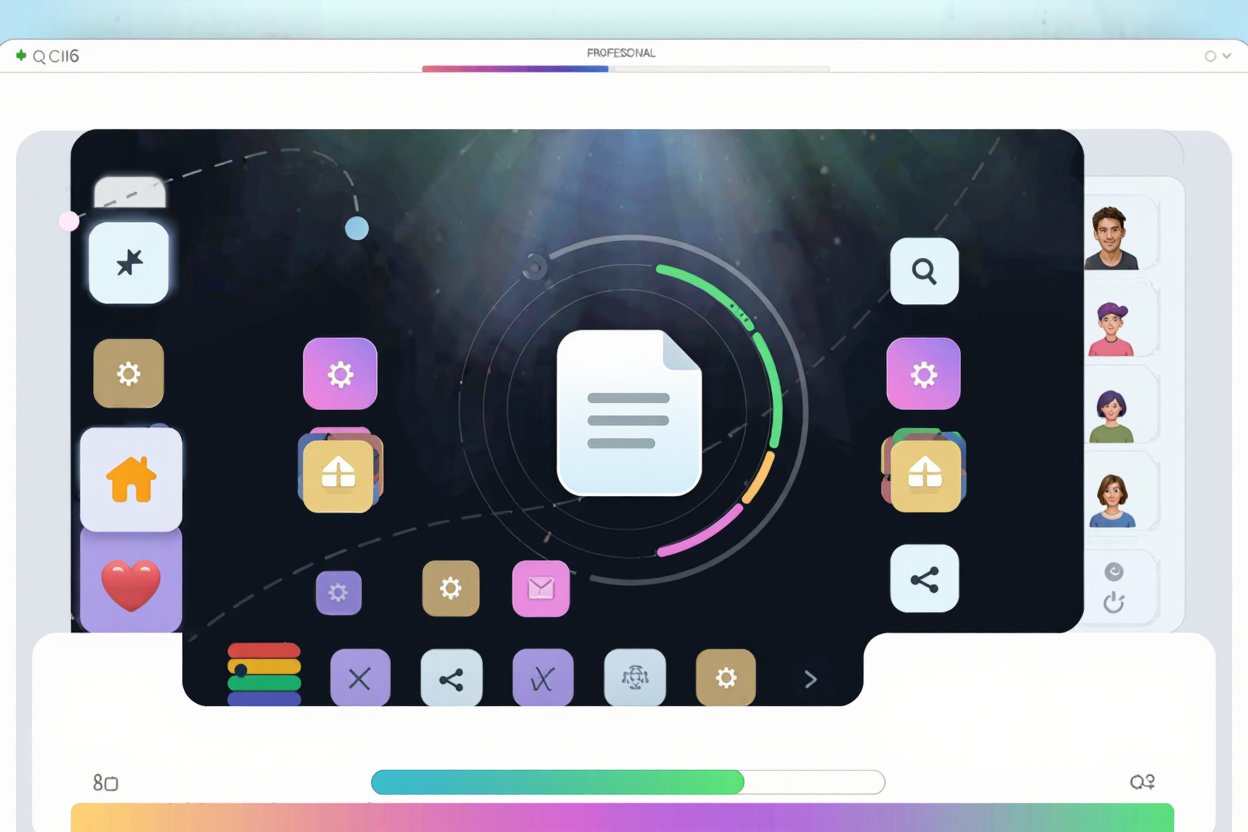
In today's fast-paced digital world, website performance is paramount. Users expect instant loading times, and search engines reward speedy sites with higher rankings. One common bottleneck for web applications is the number and size of image files, especially when dealing with numerous small icons or UI elements.
This is where PNG sprites offer a powerful solution, allowing developers to consolidate multiple images into a single, optimized file. By doing so, you dramatically reduce the number of HTTP requests your browser makes, leading to significantly faster page loads and a smoother user experience.
Understanding PNG Sprites
A PNG sprite, often simply called a CSS sprite, is a single image file composed of several smaller images or icons arranged into a grid. Instead of loading each icon individually, the browser loads one large sprite image. Your CSS then specifies which portion of that single image to display for each element on your page.
The primary benefit is the reduction in HTTP requests. Each request adds overhead, so consolidating dozens of small image requests into just one can have a profound impact on performance. This technique has been a cornerstone of web optimization for years, proving its effectiveness in various web applications.
Why Lightweight Matters for Performance
While sprites inherently reduce HTTP requests, their true power is unleashed when they are lightweight. A large sprite, even if it's a single request, can still take time to download if its file size is excessive. This is particularly critical for users on slower internet connections or mobile devices.
Optimizing your PNG sprites means reducing their file size without compromising visual quality. Lightweight sprites contribute directly to faster initial page paints, better Core Web Vitals scores, and an improved overall user experience. This directly impacts user retention and search engine rankings.
The Creation Process: From Icons to Sprite Sheet
Creating an effective PNG sprite involves a few key steps, starting with the design and arrangement of your visual assets. Careful planning here ensures both efficiency and ease of maintenance in the long run.
Designing Your Icons and Images
Begin by designing all the small icons, buttons, or UI elements you intend to sprite. Consistency in size, padding, and overall style is crucial for a clean and manageable sprite sheet. Use vector graphics tools where possible to ensure scalability and crispness.
Consider grouping related icons together. For instance, all navigation icons in one sprite, and all social media icons in another. This logical organization makes it easier to manage and update your sprites over time.
Arranging into a Sprite Sheet
Once your individual assets are ready, arrange them onto a single canvas. Tools like Adobe Photoshop, GIMP, or various online sprite generators can help you with this. Leave a small amount of transparent padding (e.g., 2-5 pixels) between each individual image to prevent visual bleed when they are displayed on the web.
Ensure that the arrangement is logical and easy to reference. A consistent grid pattern often works best. The goal is to create a single, larger image that contains all the smaller visual elements you need for a specific section or component of your web application.
Exporting as PNG
Export your final sprite sheet as a PNG file. PNG is the preferred format for sprites due to its excellent support for transparency, which is essential for irregular shapes and overlays. Make sure to export with a transparent background if your icons require it.
Choose the appropriate color depth (e.g., PNG-8 for limited colors, PNG-24 for full color and alpha transparency) to balance quality and file size. Even at this stage, thinking about file size is important before the final optimization step.
Optimizing Your PNG Sprite for Maximum Performance
Once you've created your sprite sheet, the next crucial step is to make it truly lightweight. A raw PNG export can still be unnecessarily large due to metadata, unoptimized color palettes, and other factors. This is where a dedicated PNG optimization tool like PNGMinify becomes invaluable.
Manual optimization techniques, such as reducing color depth or removing unnecessary metadata, can be time-consuming and complex. Automated tools streamline this process, applying advanced compression algorithms to shrink your file size without compromising the visual integrity of your icons.
PNGMinify intelligently reduces file size without compromising visual quality, ensuring your web application loads swiftly. You can compress your PNG files for free directly on their website. By using such tools, you dramatically cut down on the byte size of your sprite, making it load faster and consume less bandwidth.
Implementing Sprites with CSS
After creating and optimizing your PNG sprite, the final step is to integrate it into your web application using CSS. This involves defining the dimensions of each individual icon and specifying its position within the larger sprite sheet.
For each element that uses an icon from the sprite, you'll apply the sprite as a background-image. Then, using background-position, you precisely shift the background image to reveal only the desired icon. You'll also need to set the width and height of the element to match the dimensions of the individual icon.
For example, if an icon is 32x32 pixels and located at 10, 20 on your sprite, your CSS might look like .icon-name { background-image: url('your-sprite.png'); background-position: -10px -20px; width: 32px; height: 32px; }. This method ensures that only the relevant part of the sprite is visible.
Best Practices for Sprite Management
To maximize the benefits of PNG sprites, adhere to a few best practices. Regular maintenance and a structured approach will ensure your sprites remain efficient and easy to work with as your web application evolves.
Keep your sprite sheets organized and logically grouped. Using clear naming conventions for both your sprite files and their corresponding CSS classes will prevent confusion. Additionally, consider using CSS preprocessors like Sass or Less to manage sprite coordinates more effectively.
While sprites are powerful, they aren't always the best solution. Avoid using sprites for very large, unique images that aren't repeatedly used across your site. Also, ensure accessibility by providing appropriate alt text or ARIA attributes for interactive elements that rely on sprites, especially if they convey important meaning.
Beyond PNG Optimization
While optimizing your PNG sprites is crucial for web performance, remember that a holistic approach to digital asset management can further boost efficiency. For instance, if your website also handles documents, you might find value in learning how to <a href="https://pdfalone.com/tools/compress-pdf" target="_blank" rel="noopener noreferrer">Compress PDF</a> files to improve download speeds and reduce storage. Comprehensive optimization across all asset types ensures your entire digital presence is lean and fast.
FAQ
What is a PNG sprite?
A PNG sprite is a single image file that contains multiple smaller graphics or icons arranged in a grid. It's used in web development to reduce the number of HTTP requests a browser needs to make, speeding up page load times.
Why should I use PNG sprites over individual images?
Using PNG sprites significantly reduces the number of server requests, as the browser only downloads one image instead of many. This leads to faster loading web pages, improved user experience, and better scores in web performance metrics.
How does optimizing a PNG sprite help?
Optimizing a PNG sprite reduces its overall file size without losing visual quality. A smaller file downloads faster, even if it's a single request, further enhancing page load speed, reducing bandwidth consumption, and contributing to a more responsive web application.
Ready to supercharge your web application's performance? Start creating and optimizing your PNG sprites today. By meticulously designing, arranging, and compressing your visual assets, you'll deliver a lightning-fast experience to your users. Remember, you can easily compress your PNG files for free using PNGMinify and give your users the fast, responsive experience they deserve.