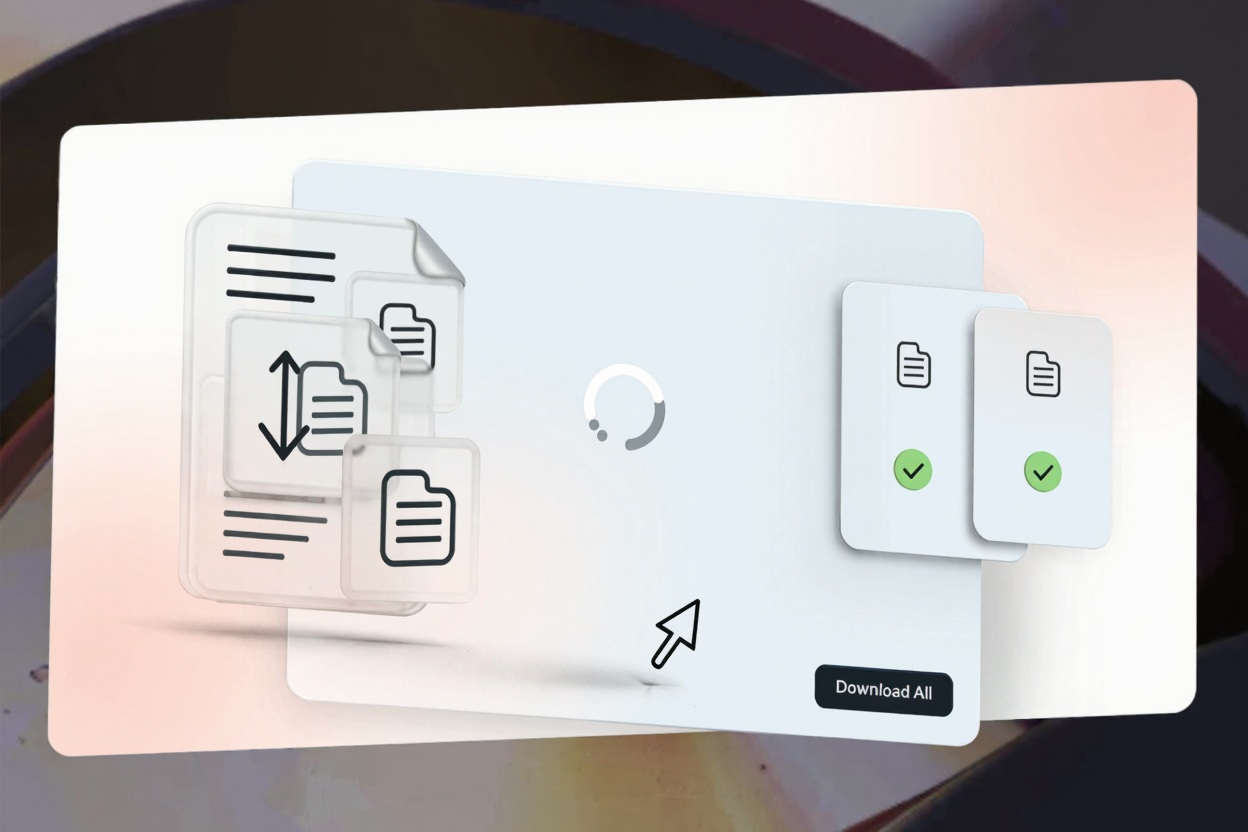
Optimizing images is crucial for any website or digital project. Large image files significantly slow down page load times, impacting user experience and search engine rankings. PNG files, known for transparency and quality, often contribute to large file sizes. Fortunately, you don't have to manually compress each image individually.
Batch compressing multiple PNG files at once is a game-changer for efficiency. This guide will show you how to drastically reduce file sizes without compromising visual quality, especially when dealing with numerous images. Streamline your workflow and ensure your website remains fast, responsive, and visually appealing.
Why Batch Compress Your PNGs?
Compressing your PNG files, particularly in batches, offers numerous advantages beyond just saving disk space. Faster loading websites are paramount for retaining visitors and improving engagement. Every second counts in the digital realm.
Optimized images contribute directly to better SEO. Search engines like Google prioritize websites with a quick, smooth browsing experience, rewarding them with higher rankings. This means more visibility for your content. Furthermore, reduced file sizes lead to lower bandwidth usage, saving on hosting costs and making your content accessible to users on slower connections.
Understanding PNG Compression
PNG (Portable Network Graphics) is a popular image format known for its lossless compression and transparency support. Its lossless nature means no original image data is discarded upon saving, ensuring perfect reproduction. However, this often results in larger file sizes compared to lossy formats like JPEG.
PNG compression tools work by identifying redundant data and encoding it more efficiently. This can involve reducing the color palette, optimizing the file's internal structure, or applying advanced algorithms. The goal is always the smallest possible file size while maintaining visual integrity.
Methods for Batch Compressing PNGs
Several approaches exist to batch compress your PNG files, each suited for different needs and technical skill levels. Understanding these options helps you choose the best tool for your specific workflow.
Online PNG Compression Tools
Online tools offer the most accessible and quickest way to compress your PNG files for free without software installation. They are perfect for users needing a fast solution for a moderate number of files. These platforms typically allow you to upload multiple files, process them simultaneously, and download optimized versions in a single batch.
PNGMinify is an excellent example of such a PNG optimization tool. It provides a user-friendly interface and powerful algorithms to significantly reduce file sizes while preserving image quality. This simplicity makes it ideal for web developers, designers, and anyone looking to improve website performance effortlessly.
Desktop Software Solutions
For those regularly handling large volumes of images or preferring offline processing, dedicated desktop software is a robust option. Programs like Adobe Photoshop or GIMP offer advanced features and greater control. While requiring installation and a learning curve, they provide powerful automation.
Command Line Tools
Advanced users, especially developers, might opt for command-line tools like OptiPNG or PNGOUT. These offer highly efficient compression and can be integrated into scripts for automated workflows. They provide granular control, making them powerful for large-scale tasks, though technical expertise is required.
How to Batch Compress with PNGMinify
Using PNGMinify to compress your PNG files for free is straightforward and efficient. Follow these simple steps to optimize your images in bulk:
- Visit the PNGMinify Website: Open your web browser and navigate to pngminify.com. You'll find a clean, intuitive interface designed for ease of use.
- Upload Your PNG Files: You can drag and drop multiple PNG files directly into the upload area, or click "Upload Files" to browse and select them. PNGMinify supports simultaneous uploads, allowing many images to be processed at once.
- Automatic Compression: Once uploaded, PNGMinify automatically begins compression for each file. The tool employs advanced algorithms to reduce file size efficiently without noticeable loss in visual quality. You'll see real-time progress indicators.
- Review and Download: After compression, PNGMinify displays original and compressed file sizes, plus the reduction percentage. You can then download individual optimized PNGs or, conveniently, download all compressed files in a single ZIP archive. This batch download feature is particularly useful for numerous images.
- Integrate and Enjoy: With your newly compressed PNGs, upload them to your website or include them in projects with confidence. Enjoy faster load times, improved SEO, and a smoother user experience.
For additional compression needs, consider using a versatile <a href="https://convertminify.com/tools/compress-png" target="_blank" rel="noopener noreferrer">PNG Compressor</a> that offers similar functionalities across different platforms.
Tips for Optimal PNG Compression
While batch compression tools are powerful, a few best practices can further enhance your results:
- Start with Good Quality Images: Compression works best on images already of decent quality. Avoid compressing heavily pixelated or low-resolution images, as this can exacerbate visual artifacts.
- Choose the Right Tool: For most web tasks, online tools like PNGMinify offer an excellent balance of speed, convenience, and effectiveness. For highly specific needs or massive datasets, desktop or command-line tools might be more appropriate.
- Review Compressed Images: Always do a quick visual check of your compressed images, especially if aiming for extreme file size reductions. While lossless compression maintains quality, some tools might offer lossy options for PNGs, which could introduce minor artifacts if overused.
- Consider Image Dimensions: Before compression, ensure images are sized appropriately for their intended use. Resizing an image to smaller dimensions before compression can yield even greater file size reductions.
FAQ
Q1: Will batch compressing PNGs reduce their quality?
A1: Most modern PNG compression tools, including PNGMinify, use lossless compression techniques. This means they optimize the file's data structure without discarding visual information, maintaining original image quality. Some tools might offer optional lossy compression for PNGs, which could reduce quality slightly for greater file size savings, but this is usually an opt-in feature.
Q2: How many PNG files can I compress at once with online tools?
A2: The exact number of files or total file size limit varies between online tools. PNGMinify is designed to handle multiple files efficiently, allowing for significant batch uploads. Always check the specific tool's limits if you have an exceptionally large number of files or very high-resolution images.
Q3: Is it safe to upload my images to an online compressor?
A3: Reputable online compressors like PNGMinify prioritize user privacy and data security. They typically process images on secure servers and do not store your files long-term after compression and download. Always ensure you are using a trusted and well-regarded service.
Don't let unoptimized images slow down your website or project. Embrace the power of batch compression to streamline your workflow and enhance performance. Visit PNGMinify today and experience how easy it is to optimize multiple PNG files at once, ensuring your digital content is fast, efficient, and visually stunning.